
Objects, paths & layers
Everything in an Octostitch design is built from a few simple ideas. Understanding them makes the rest of the app click into place.
Objects and paths
Section titled “Objects and paths”A design is a list of objects. Each object is one element that gets stitched — a shape, a satin column, a fill area, a line of running stitch, a block of manual stitches, and so on.
Most objects are built on a path: one or more Bézier subpaths that define the object’s geometry. The path is the editable “source of truth”; Octostitch generates the actual stitch points from the path plus the object’s stitch settings. Change the path or the settings and the stitches regenerate.
A few object kinds work a little differently:
- Satin columns use two paths (rails) — one for each side of the column.
- Manual objects store hand-placed stitch points directly rather than deriving them from a path.
- Shapes (rectangle, ellipse, star, polygon) are parametric — you edit their parameters and handles rather than raw path nodes.
Layers and stitch order
Section titled “Layers and stitch order”The object list in the Stitches side-panel tab is a stack of layers: the top row is the front-most object, the one that ends up lying over the others in the fabric. That stack is the sewing order, read from the bottom up — the object at the bottom of the list sews first and the one at the top sews last, which is exactly what puts it on top. Reordering objects changes both what sews first and which colours change when.
Select an object and reorder it with:
| Action | Shortcut |
|---|---|
| Raise / lower one layer (sews later / earlier) | Page Up / Page Down |
| Move to top / bottom of the stack | Home / End |
In the Colours tab the same shortcuts move an entire colour block at once, which is handy for colour sequencing.
Selecting objects
Section titled “Selecting objects”- Click an object (or its row in the list) to select it.
- Marquee-drag on empty canvas to select everything inside the box.
- Hold Shift on the canvas to add to or remove from the selection (multi-select).
- Shift-click a row in the list to select the whole run between it and the last row you clicked plainly — the usual file-list range select. Handy for grabbing a block of objects in sew order without picking them off the canvas one by one.
- Press Escape to deselect.
Many operations — recolouring, branching, boolean operations — act on the whole selection, so multi-select is worth getting comfortable with.
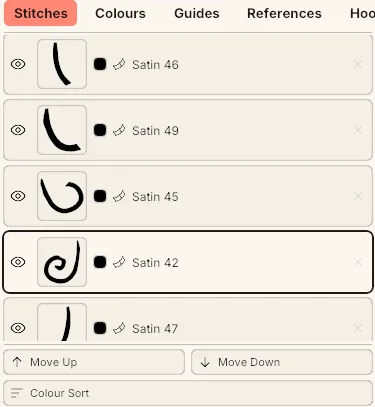 The list is a layer stack — the bottom row sews first, the top row sews last and lands on top. The selected object is highlighted.