
Shapes
The Shape tool places ready-made parametric shapes you can drop onto the canvas and fill or outline. Arm it from the Shape create button in the toolbar, pick a shape kind, then drag on the canvas to place it. Hold Shift while dragging to constrain the shape to a square bounding box — so ellipses become circles and rectangles become squares.
Shape types
Section titled “Shape types”- Rectangle
- Ellipse
- Star (starts as a 5-pointed star)
- Regular polygon (starts as a hexagon)
Editing shape parameters
Section titled “Editing shape parameters”Shapes are parametric — instead of raw path nodes, they keep a definition you edit through the parameter fields in the side panel (and the on-canvas handles). Select a shape to see its Shape section:
| Shape | Parameters (range) |
|---|---|
| Rectangle | Width, Height (0.5–500 mm) + Corner radius |
| Ellipse | Radius X, Radius Y (0.5–250 mm) |
| Star | Points (2–50), Inner R, Outer R (0.1–250 mm) |
| Regular polygon | Sides (3–50), Radius (0.5–250 mm) |
Every shape also has a Rotation (−180° to 180°).
Wherever a shape has a pair of measurements — a rectangle’s width and height, an ellipse’s two radii, a star’s inner and outer radius — a Lock ratio tick under the fields keeps them in proportion: edit either one and its partner moves by the same ratio, clamped to its own range. On a star that holds the spikiness constant while either radius resizes it. It’s off by default and applies to the side-panel fields, and one setting covers every shape.
Rounded corners
Section titled “Rounded corners”A rectangle’s Corner radius rounds all four corners. It goes up to half the rectangle’s shorter side — at the maximum, a square becomes a circle and a long rectangle becomes a stadium. Squash the rectangle below the radius it’s carrying and the radius is re-clamped to fit, rather than springing back when you widen it again.
Rounded corners matter more in stitching than in vector art: a hard corner on a satin outline or the edge of a fill is where thread piles up and fabric puckers. A millimetre or two of radius often sews noticeably cleaner.
On-canvas handles
Section titled “On-canvas handles”With the Edit tool active, a selected shape shows green square handles you can drag to resize it directly — a corner and the corner radius for a rectangle, the two radii of an ellipse, the outer and inner radius of a star, and the radius of a polygon.
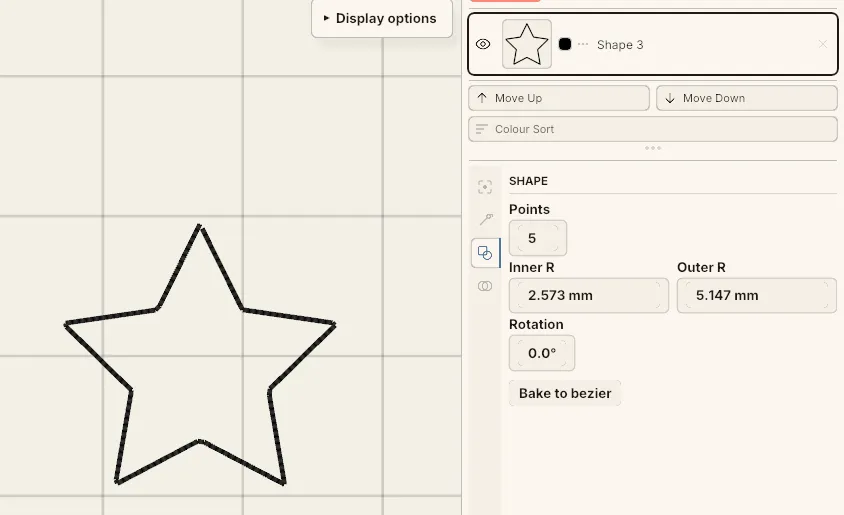 A selected star and its Shape parameters — points, inner and outer radius, rotation, and Bake to bezier.
Because shapes are parametric, they’re edited with the Select and Edit tools only — the Pen and Meta tools don’t apply, since adding path nodes would break the definition.
Bake to bezier
Section titled “Bake to bezier”Want to break a shape out of its parametric form and edit it freely? Click Bake to bezier in the Shape section. This converts it into an ordinary Bézier path whose nodes you can move, add and delete like any other — but the parametric fields (sides, radii, etc.) are gone once baked.