
Select & transform
The Select tool (V) is how you pick objects and move or transform them.
Select and move
Section titled “Select and move”- Click an object to select it, then drag to move it.
- Marquee-drag on empty canvas to select everything inside the box.
- Hold Shift while clicking to add to or remove from the selection.
- Escape deselects;
Ctrl + Aselects all.
Nudging
Section titled “Nudging”With something selected, the arrow keys nudge it by 1 mm; hold Shift for a fine 0.1 mm nudge. Holding an arrow key repeats the nudge. Each nudge is individually undoable.
Scale & rotate
Section titled “Scale & rotate”Select an object (or several) to show its bounding-box gizmo. The gizmo toggles between scale handles and rotate handles, so you can resize or spin the selection around its centre. Scaling is density-aware — stitches regenerate at the new size rather than stretching.
The box hugs the curves themselves, not the control handles that steer them. A Bézier handle pulled well out to the side doesn’t push the box away from the shape, so the size shown in the corner readout is the size the design actually sews.
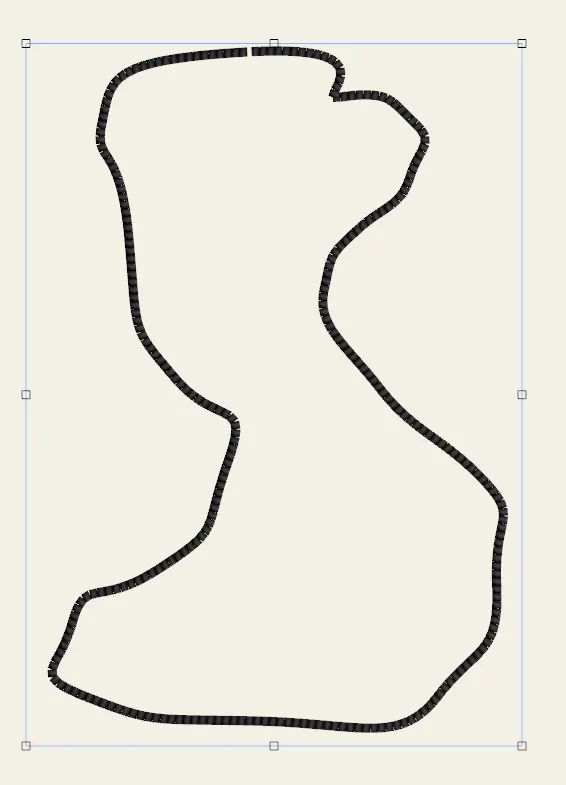 A selected object with its bounding-box gizmo — scale and rotate handles.
Duplicate, copy & paste
Section titled “Duplicate, copy & paste”| Action | Shortcut |
|---|---|
| Copy | Ctrl + C |
| Paste | Ctrl + V |
| Paste in place | Ctrl + Alt + V |
| Duplicate selection | Ctrl + D |
| Delete selection | Delete / Backspace |
Duplicate (Ctrl + D) copies the selected objects directly. Paste in place
drops the pasted copy at the same coordinates it was copied from, rather than offset —
handy for moving something between designs without losing its position.