
Text boxes
A text box is the quickest way to add lettering. You type your text, pick a font,
and Octostitch generates stitchable letters — as satin, when using a satin
.octofont, or as filled outlines from a TrueType
font.
Adding a text box
Section titled “Adding a text box”- Click the Text create button in the toolbar (this arms text placement).
- Click on the canvas to place the text box.
- Type your text and choose a font.
Alignment & spacing
Section titled “Alignment & spacing”With a text box selected, the side panel exposes:
- Alignment — Left, Center or Right, for multi-line text.
- Line spacing — extra space between lines (mm).
- Letter spacing — extra space between letters (mm), to loosen or tighten the run.
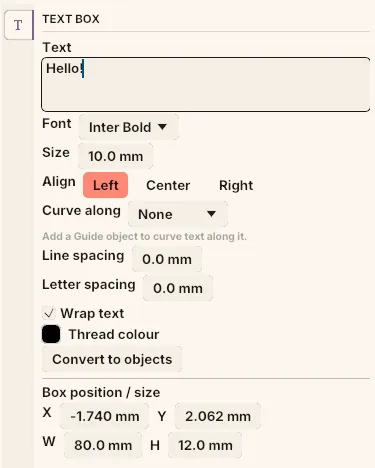 A text box’s settings — the text itself, font and size, alignment, curve-along guide, line and letter spacing, and the box’s position and size.
Colour
Section titled “Colour”A text box carries its own thread colour. Recolour it the same way as any object — select it and click a swatch in the thread bar. The colour is stored on the text box’s definition, so it survives when the letters regenerate after an edit.
Editing text
Section titled “Editing text”Re-select a text box to change its wording, font, alignment or spacing at any time — the lettering regenerates from the new settings.