
Installing Octostitch
Grab the latest installer from the download page, run it, then open the app and activate your licence. Installation is straightforward on every platform.
Windows
Section titled “Windows”A standard Windows installer — download it, run it, and follow the prompts. There’s nothing unusual to do. Both the installer and the application it installs are code-signed, so Windows names Octostitch as the publisher rather than putting an unrecognised-app warning in your way.
macOS builds are for Apple Silicon (ARM) Macs. The app is a signed binary, so installation is smooth with little friction.
Two package formats are available:
- AppImage — download it, make it executable, and run it. Nothing to install system-wide.
.deb— install it with your package manager on Debian/Ubuntu-based distributions.
Pick whichever suits your setup.
Staying up to date
Section titled “Staying up to date”Octostitch checks for a newer release on launch and tells you when there is one, with a link to the download page. It only interrupts you when an update actually exists — if you’re on the current version you’ll never see it.
You can also check whenever you like from Help → Check for Updates…, which reports the result either way. The same status, and a Check for updates button, sit in Help → About OctoStitch next to your version number.
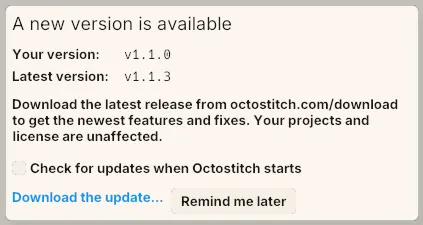 The launch check when there’s something newer — both version numbers, the link to the download page, and the same Check for updates setting you’ll find on the Help menu.
To turn the launch check off, untick Check for updates on launch on the Help menu. The setting is remembered between sessions.
Updating is just installing the new version over the old one — your designs, licence, fonts, patterns and palettes are untouched.