
Boolean operations
Boolean operations build complex outlines out of simpler ones by merging, cutting or intersecting selected objects. Select two or more objects with the Select tool, then pick an operation from the Selection menu — all three also have buttons in the side panel’s Modify group.
Each operation replaces the objects you selected with the single outline it produces, so keep a copy first if you’ll want the originals back.
Union merges the selected objects into a single outline — everything covered by any of them becomes one shape. Use it to weld overlapping pieces into one clean fill region.
Shortcut: Ctrl + Shift + = (with the Select tool active).
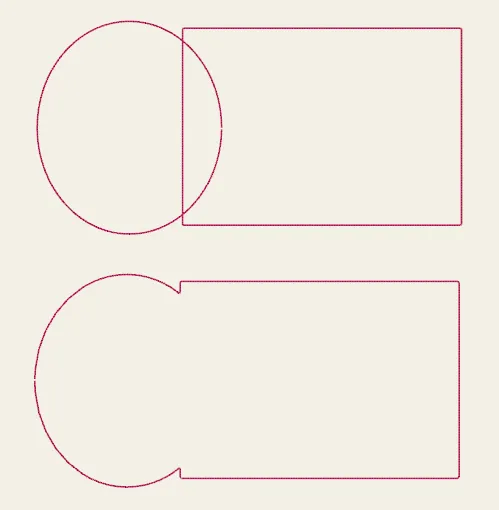 Before (top) and after (bottom): the two overlapping outlines become one.
Difference
Section titled “Difference”Difference subtracts the topmost selected object from the ones beneath it, cutting its shape out of the result — the way you’d punch a hole in a shape. The object highest in the layer order is the cutter.
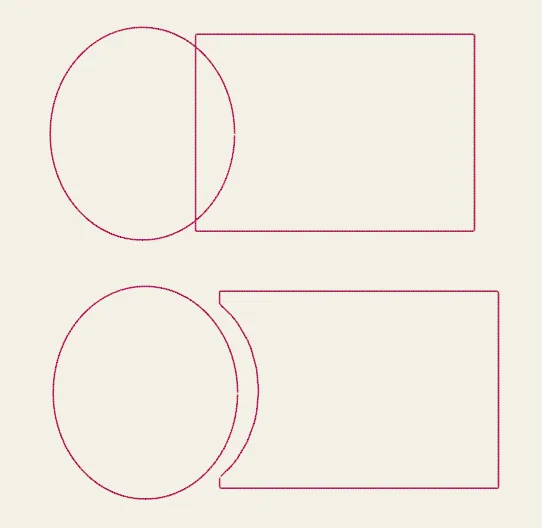 Before (top) and after (bottom): the ellipse cuts its shape out of the rectangle beneath it.
Intersect
Section titled “Intersect”Intersect keeps only the region common to every selected object and throws the rest away — the overlap, and nothing else. It’s the opposite end of the scale from Union: where Union keeps everything any object covers, Intersect keeps only what they all cover. If the selection has no region in common, there’s nothing to build and you’ll get no result.
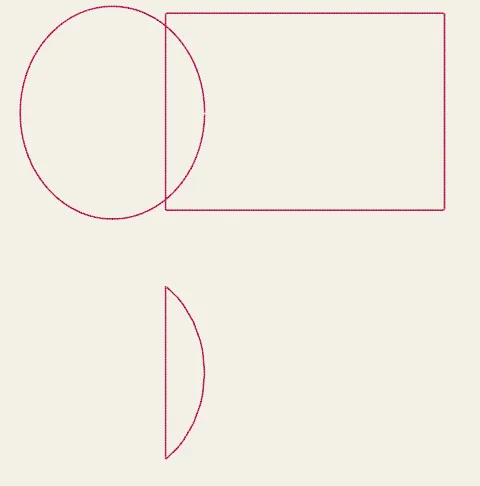 Before (top) and after (bottom): Intersect keeps only the region the two objects share.
Combine paths & break apart
Section titled “Combine paths & break apart”Related, but distinct from booleans, are the path-combining commands:
| Action | Shortcut | What it does |
|---|---|---|
| Combine paths | Ctrl + K |
Treat several paths as one compound path (e.g. a shape with holes) |
| Break apart | Ctrl + Shift + K |
Split a compound path back into separate paths |
Combining paths keeps the subpaths as one object using an inside/outside fill rule, which is how a shape can have holes (like the counter of an “O”) in a single fill.