
Edit (node editing)
The Edit tool (N) edits the geometry of a path after it’s drawn — moving
anchors and their control handles, changing how each node curves, and fine-tuning
positions.
Moving anchors & handles
Section titled “Moving anchors & handles”Select the Edit tool and drag an anchor to move it, or drag a control handle to reshape the curve around it. You can select multiple nodes at once and move them together.
Snapping & axis lock
Section titled “Snapping & axis lock”While dragging:
- Hold Ctrl to snap the movement to a 1 mm increment.
- Use the axis lock (Blender-style) to constrain a drag to the horizontal or vertical axis.
- Alignment guides appear through a connected neighbour when your drag lines up with it, so you can keep nodes level or plumb.
Node modes
Section titled “Node modes”Each anchor has a node mode that controls how its handles behave, shown by the node’s on-screen shape:
| Mode | Shape | Behaviour |
|---|---|---|
| Smooth | Circle | Handles stay opposite and in line — a continuous curve through the node |
| Free | Square | Handles move independently |
| Sharp | Diamond | A hard corner with no curve smoothing across the node |
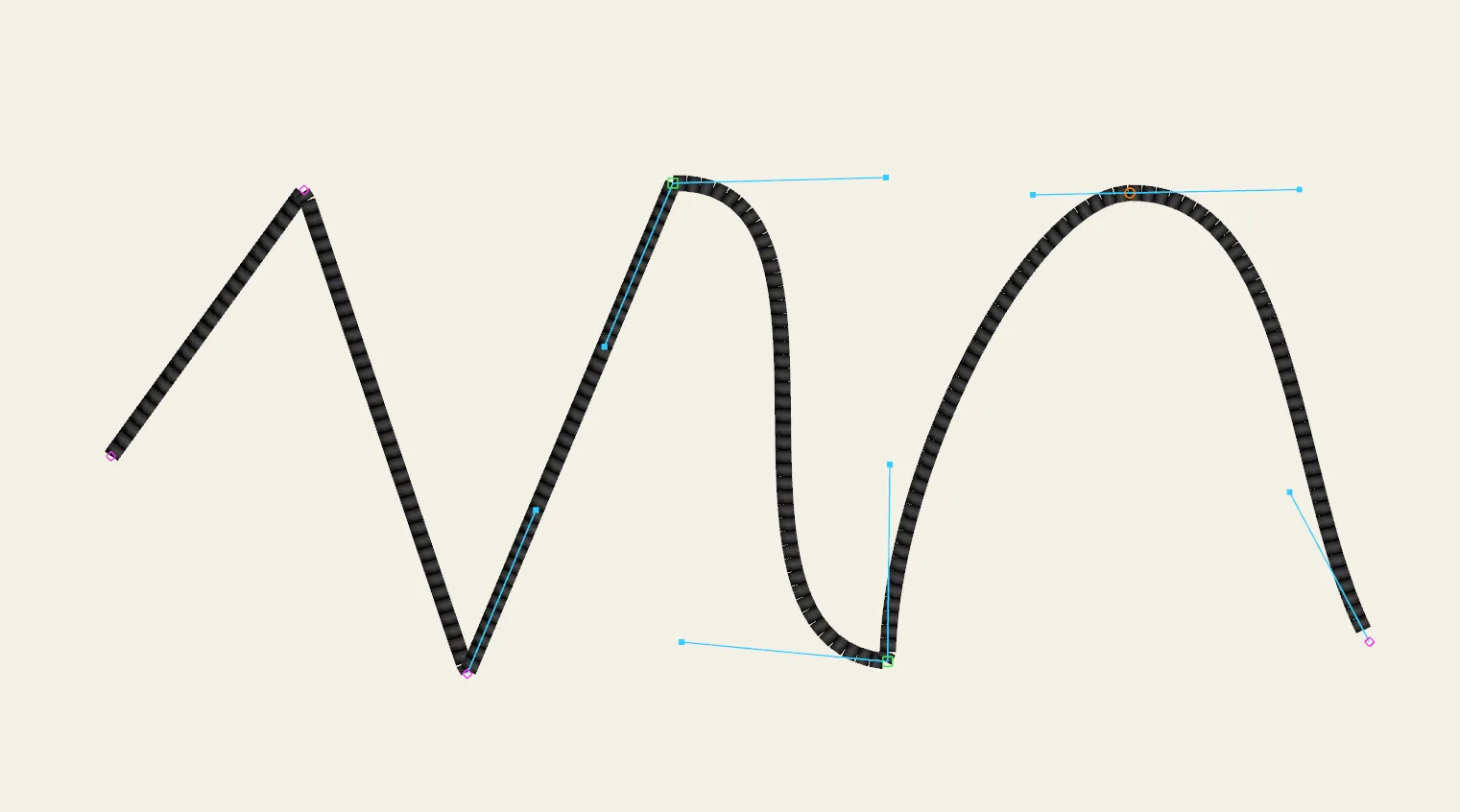 The three node modes — sharp (diamond), free (square) and smooth (circle) — with their handles.
Switching a Free or Sharp node to Smooth has to make its two handles line up, and Octostitch does that by splitting the difference: the new direction is the bisector of the two handles you already had, and each keeps its own length. The correction is shared between them rather than one handle snapping onto the other, so the curve you drew mostly survives the conversion. Only when the handles carry no usable direction — both sitting on the anchor, or folded exactly back on each other — does it fall back to the neighbouring anchors for a direction.
Joining & breaking paths
Section titled “Joining & breaking paths”The node panel in the bottom-left of the canvas has two buttons — Join and Break — that change which nodes a path connects, rather than where they sit. Both act on exactly two selected nodes, and both grey themselves out until the selection is one they can act on (hover either button and it tells you what it would do, or what to select).
Join links two loose ends:
- Both ends of the same open path → the path closes into a loop.
- One end of each of two paths → the two become a single path. Octostitch flips whichever of them it has to so the joined ends meet in the middle.
Ends already sitting on top of each other (within about 0.05 mm) are welded into one node instead of being linked by a zero-length segment.
Break removes the segment between two adjacent nodes:
- A closed loop springs open between them.
- An open path splits into two.
- Break the segment at either end of an open path and that end node goes with it — a node with no segment either side can’t be kept.
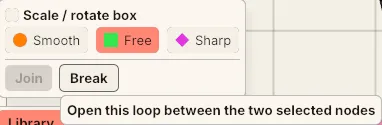 The node panel with two adjacent nodes of a closed loop selected — Join has no loose ends to link so it greys itself out, while hovering Break says exactly what it would do.
Both are ordinary undoable edits, so it’s safe to try one and Ctrl + Z back.
Precise coordinates
Section titled “Precise coordinates”For exact placement, the node coordinate panel lets you type a node’s position directly rather than dragging — useful for aligning to real-world millimetre measurements.
Copying part of a path
Section titled “Copying part of a path”Ctrl + C with nodes selected copies just those nodes, not the whole object. Each
run of connected nodes comes across as its own piece of path.
Ctrl + V pastes at the cursor, Ctrl + Alt + V pastes in place. If the object you
have selected can take the geometry — Bézier fragments need a Bézier object, hand-placed
points need a Manual one — the pasted nodes merge into it. Otherwise Octostitch creates
a new object carrying the source object’s colour and stitch settings, so a fragment
lifted out of a shape arrives stitched the same way it left.
This is the quick way to reuse a curve you’ve already tuned: select the run, copy, and paste it wherever you need it again.
Deleting nodes
Section titled “Deleting nodes”Select a node (or several) and press Delete to remove it from the path.