
Ties, trims & STOPs
Tie-ins and tie-offs
Section titled “Tie-ins and tie-offs”A tie-in is a few tiny lock stitches at the start of a run of stitching, and a tie-off is the same at the end. They anchor the thread so it can’t unravel or pull out when the machine trims and moves on.
Ties are applied when a file is written, not while you work — they’re inserted into each run as the machine file is exported, so they never clutter the canvas and changing them never re-sews anything. A tie always returns to where it started, so it never moves the run’s own first or last needle position; it only adds thread around it.
Ties only go where the thread is actually cut. A gap the trim rule carries the thread across is left untied — there’s nothing to unravel.
Project settings, not app settings
Section titled “Project settings, not app settings”Ties and trims belong to the design, so they’re saved inside the .ostch file and
travel with it from one machine to another. They live in File → Project Settings…
(and there’s a Ties and trims… shortcut in the File → Export submenu, where they
used to be).
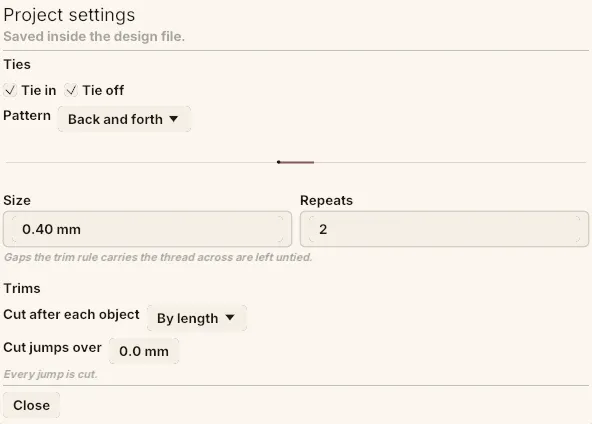 Project settings — ties above, trims below, saved inside the design file. Here the pattern preview draws a back-and-forth tie at 0.40 mm and two repeats, and with Cut jumps over left at 0.0 mm the summary underneath reads “Every jump is cut.”
Tie settings
Section titled “Tie settings”- Tie in / Tie off — which ends get locked. Both on by default.
- Pattern — the shape the lock stitch traces (see below).
- Size (0.1–3 mm) — how big the tie is drawn. Each pattern starts at a size chosen for it, and changing pattern carries a default size across to the new one; a size you set yourself stays put.
- Repeats (1–5) — how many times the pattern is traced. Two is the usual holding power for back-and-forth; the crossing patterns generally need only one.
A live preview under the pattern picker draws the tie at the repeats you’ve set, so you can see what you’re about to sew.
Tie patterns
Section titled “Tie patterns”| Pattern | What it traces | When to use it |
|---|---|---|
| Back and forth | Out along the run and straight back — the classic lock stitch | The default, and what every design made before tie patterns existed sews |
| Star | Three arms at 120°, each returning to the centre | Loose knits, where a straight lock can pull out — it binds in every direction |
| Cross | Four arms on the diagonals, an X through the endpoint | Tighter than a star, and less likely to peek out from under a narrow satin column |
| Triangle | A small closed triangle hung off the endpoint | The lightest tie here that still crosses its own thread — three stitches |
| Zigzag | A short zigzag out and back on the opposite phase, crossing itself twice | The most secure of the set, and the most visible |
A tie can never overshoot the stitching it’s anchored to, so none of these leave a spike out past the end of a run however large you size them.
Overriding ties for one object
Section titled “Overriding ties for one object”An object can break away from the design’s ties in its own Ties & trims tab in the side panel. Tick Override tie-in and tie-off and you get the same controls for that object alone. Ticking the box changes nothing on its own — the override is seeded from the project’s settings, so the first edit is yours.
Leave it unticked and the tab tells you what the object is inheriting instead.
Trims: where the thread is cut
Section titled “Trims: where the thread is cut”Cutting is a property of the whole design rather than of one object — it’s about the path between objects, and one object’s answer is the next one’s problem. The controls are in File → Project Settings… under Trims:
- Cut after each object — By length (the default: cut only when the travel to the next object is longer than the threshold below), Always (cut however short the travel), or Never (carry the thread across, for two objects that are really one shape).
- Cut jumps over (0–25 mm) — the jump length that decides. This applies to gaps inside an object as well as to the travel out of it. 0 cuts every jump, which is what every design made before there was a threshold does.
A plain-English summary sits under the controls and says what the rule actually does — “Jumps up to 3.0mm are carried, not cut.”
Raising the threshold is a real saving: each cut costs machine time and leaves two thread tails to deal with, so a short hop is cheaper left uncut — the thread is carried across and disappears under the next stitches, or is snipped once at the end. Set it too high and you get long floats bridging visible gaps.
Forcing a cut on one object
Section titled “Forcing a cut on one object”An object’s Ties & trims tab has one say over cutting: Cut the thread after this object, which cuts here whatever the design’s rule says. It can add a cut, never take one away — an object that wanted to stay attached would be deciding for the object after it. Below the tick, the tab names the design rule it’s sitting on top of.
Micro-stitch filtering
Section titled “Micro-stitch filtering”Separately from ties and trims, Octostitch can filter out micro-stitches at export — merging sewn stitches shorter than a minimum length (default 0.3 mm) across every stitch type — to protect the machine from the thread-break-inducing tiny stitches that dense nodes or tiny detail can produce. That one is an app setting, in File → Export, and isn’t saved with the design. See Exporting.
Machine STOPs
Section titled “Machine STOPs”A STOP is an instruction in the stitch file that pauses the machine and waits for the operator. Octostitch emits STOPs where the operator needs to do something by hand:
- Colour changes — the machine stops so you can change thread (on multi-needle machines this drives the needle change).
- Appliqué — the appliqué stitch type emits STOPs after the placement outline (so you can lay the appliqué fabric down) and after the tackdown (so you can trim the excess) before the final border sews.
The order of colours — and therefore where the colour-change STOPs fall — is set by the object/colour order in your design. See Colour sequence & sorting.