
Exporting to your machine
When a design is ready to sew, export it to a stitch file your embroidery machine can read. Exporting (like Save) requires an active licence.
Supported formats
Section titled “Supported formats”From File → Export, Octostitch writes:
| Format | Machine family |
|---|---|
| PES | Brother |
| DST | Tajima (widely supported) |
| JEF | Janome |
| VP3 | Pfaff |
| EXP | Melco |
| XXX | Singer |
| HUS | Husqvarna |
| TAP | Happy |
You can also export a production worksheet PDF from the same menu.
Several formats at once
Section titled “Several formats at once”File → Export → Several formats at once… writes the same design to one folder in every format you tick, in a single action. Pick the destination folder and a base file name — each format appends its own extension — and Octostitch reports what it wrote and anything that failed.
PES and DST are ticked by default, since between them they cover most machines. The files go through exactly the same writer as a single-format export, so your tie, minimum-stitch and pull-compensation settings apply identically.
It’s the quickest way to hand a design to someone whose machine you don’t know, or to keep a DST alongside your native format as a fallback.
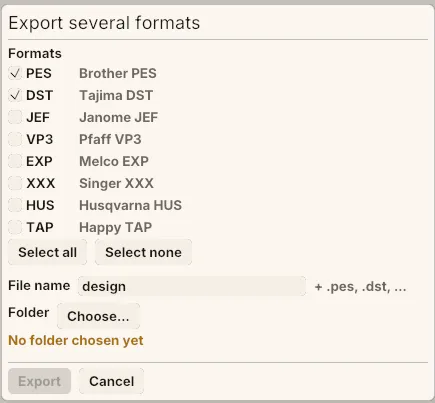 Every format is one tick away, with PES and DST already on. The Export button stays disabled until you’ve chosen a destination folder.
Choosing the right format
Section titled “Choosing the right format”- Use the native format for your machine’s brand where possible (PES for Brother, JEF for Janome, and so on) — it carries the most information for that machine.
- DST is the universal fallback: almost every machine reads it. The format has no colour storage of its own, so most software treats a DST as stitches and colour-change stops and nothing more. Octostitch tucks the palette into spare space in the DST header and reads it back, so your own DSTs keep their colours in Octostitch — but don’t count on that surviving a trip through someone else’s software, and expect to set colours at the machine.
- TAP (Happy) carries no colours either, and unlike DST there is nowhere in the file to put them — see below.
- Sending a file to someone else? Ask which format and machine they use.
TAP and its .edr colour file
Section titled “TAP and its .edr colour file”A .tap is a bare stream of stitch records: no header, no thread list, nowhere a
palette could live. So exporting a TAP also writes a .edr colour file with the
same name beside it — design.tap and design.edr. Octostitch (and other software
that looks for a sidecar) picks the .edr up automatically when the .tap is opened,
so the design comes back with the threads you gave it.
Keep the pair together when you archive or send a TAP. Open a .tap with no sidecar
next to it and the colours aren’t merely missing — they’re invented, so the design
arrives in arbitrary colours you’ll need to reassign.
Export settings
Section titled “Export settings”The export options are shown in the File → Export menu when you choose your export file type. Octostitch applies some finishing at export time:
- Minimum-stitch filter — merges tiny sewn stitches (default under 0.3 mm) that could cause thread breaks (on by default).
- Pull compensation (experimental) — an optional pre-distortion that anticipates fabric pull; off by default. Its model can be unpredictable — it may over- or under-correct — so leave it off unless you’ve tested it against your own stitch-outs.
Ties and trims — the lock stitches at each end of a run, and where the thread is cut
— used to live here too. They belong to the design rather than to this copy of the app,
so they moved to File → Project Settings…, saved inside the .ostch file; the
Ties and trims… entry left in this menu is a shortcut to them. See
Ties, trims & STOPs.