
Decorative stitches
A decorative stitch repeats a small motif — a pattern of stitches — along a path, for candlewicking-style borders, dashed and dotted lines, hearts, leaves and other repeating accents. To build your own motifs, see Authoring decorative motifs.
Using decorative stitches
Section titled “Using decorative stitches”Apply a decorative stitch to a path and Octostitch tiles the chosen motif along it, repeating one tile every so many millimetres of path length.
Settings:
- Decorative pattern — which motif to tile. Motifs come from
.octodecofiles; pick one and its geometry is baked into the object so it resamples instantly as you edit the path. You choose from pictures of what each motif sews rather than a list of names — see Picking a motif below. - Size (
size_mm) — the arc length of one tile along the path. Smaller = the motif repeats more often. - Width × — scales the motif across the path (perpendicular offsets), so you can make the same motif taller or shorter without changing how often it repeats.
- Follow path curve — when on, the motif’s points follow the curve of the path; when off, each tile is pasted straight between its endpoints (crisper for angular motifs).
- Curve step — only appears for motifs that contain curves. It sets how finely those curves are sampled into stitches: smaller values give a smoother curve at the cost of more stitches.
- Mirror — flips the motif to the other side of the path. It reflects about the seam itself, so the tiles still join exactly where they did and only the design swaps sides — the quick way to turn a border facing in into one facing out.
- Min stitch length — optional; drops stitches shorter than this, so a dense motif doesn’t pile thread in one spot.
Below the settings, the panel tells you how many nodes the chosen motif has, and marks it (Bézier) if it’s a curved one.
Octostitch ships with a handful of motifs to start from, and you can author your own.
Picking a motif
Section titled “Picking a motif”“Rocky” and “Slashy Waves” say very little until you’ve seen what they sew, so the Decorative pattern picker shows a swatch of each motif stitched along a line, drawn in the object’s own thread colour. The currently chosen motif’s name sits in the picker’s header.
The button in the top-right corner of the picker switches between two views:
- List — one motif per row, with its name and what it’s made of.
- Grid — swatches packed as many to a row as fit, captioned.
The choice is remembered between sessions, and it’s shared with the tatami pattern and font pickers, which work the same way.
Freezing a decorative into editable paths
Section titled “Freezing a decorative into editable paths”Two buttons in the side panel’s Modify group, below the separator with the other conversions, turn a tiled decorative into something you can edit by hand:
- Bake to manual stitches — freezes the tiled result into individual manual stitch points.
- Bake to Bézier paths — only offered for Bézier motifs. Converts the tiling into ordinary Bézier paths on a running stitch, keeping the curves as curves rather than flattening them to points. Use this one when you want to keep editing the shapes the motif drew — baking a curved motif to points throws that geometry away.
Both are one-way: once baked, the object is no longer a decorative stitch and the Pattern / Size / Width settings are gone.
Straight and curved motifs
Section titled “Straight and curved motifs”Motifs come in two flavours, and Octostitch treats them differently:
- Straight (hand-placed) motifs stitch their own points exactly as authored. What you drew is what sews.
- Bézier motifs carry curves, which are re-sampled into stitches at placement time using the Curve step. That means the same motif stays smooth whether you tile it at 4 mm or 40 mm, instead of getting visibly faceted as it grows.
See Authoring decorative motifs for building either kind.
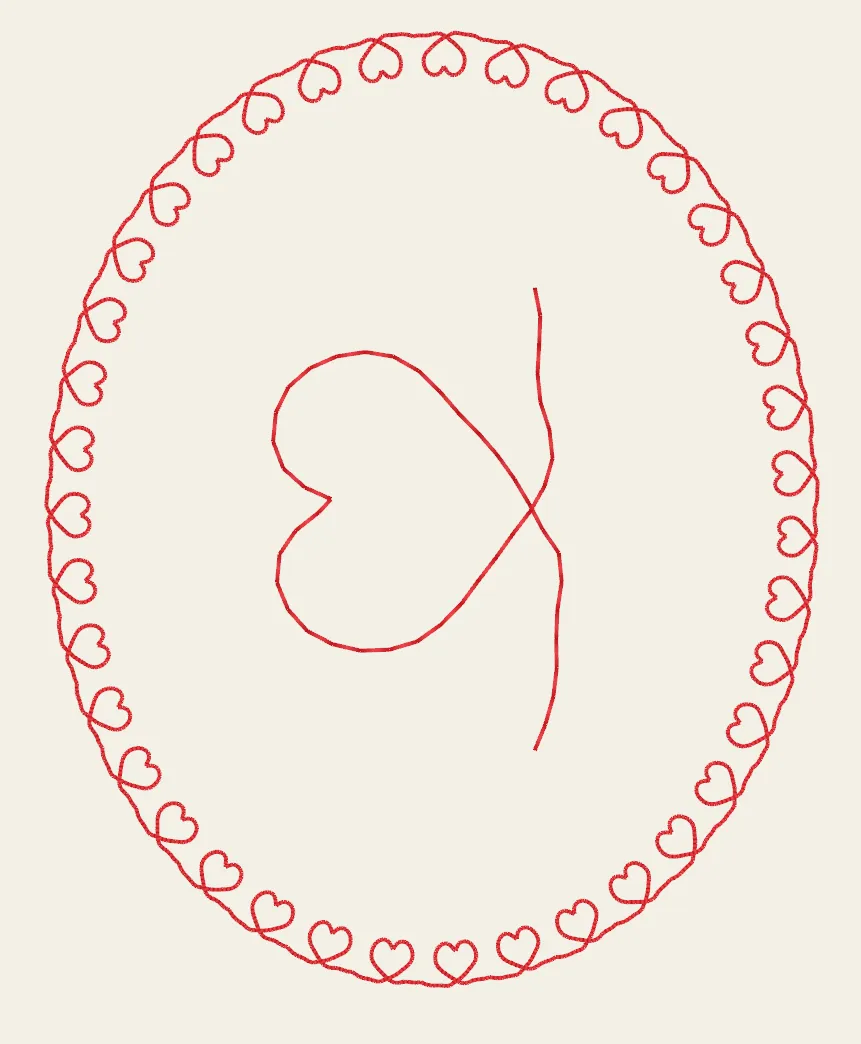 A heart motif tiled around a closed path — one tile every
 size_mm of path length, following the curve.