
Grid, guides & snapping
Octostitch has a few aids for placing things precisely. They’re all toggles, so you can show only what you need.
The grid & axes
Section titled “The grid & axes”The canvas can show a background grid, and the X/Y axes through the origin — the X axis in red, the Y axis in green. Turn the grid and the axes on and off independently in Display options, in the top-right of the canvas.
Grid spacing
Section titled “Grid spacing”With Grid lines on, a Spacing box appears under it. The default is 5 mm and you can set anything from 0.5 mm to 100 mm; Reset puts it back to 5 mm. Your choice is remembered between sessions.
Because Octostitch works in real millimetres the grid is a true measure, not just a backdrop — at the 5 mm default, five squares is 25 mm on the machine. Tighten the spacing when you’re placing small detail, and open it out when you’re judging the overall size of a design.
The rulers take their minor ticks from the same setting, so the two always agree.
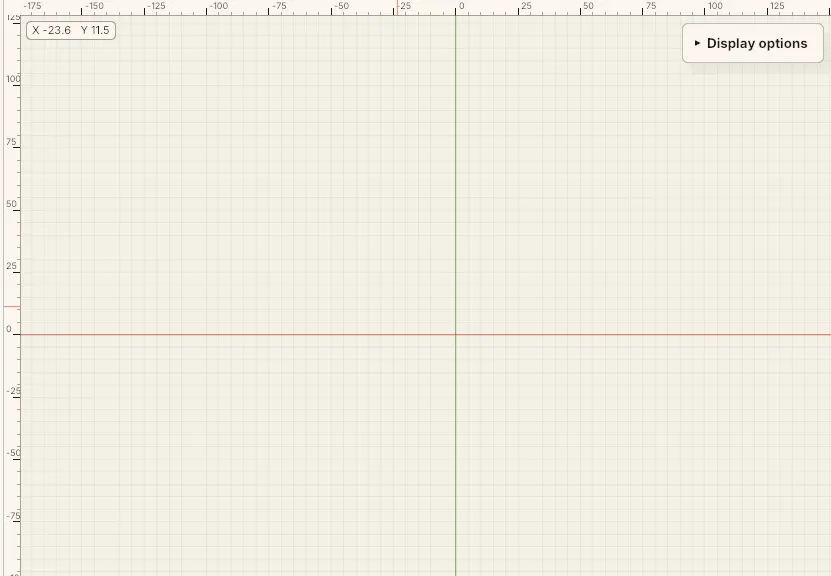 Grid, axes and rulers together — the rulers are marked in millimetres and the cursor’s position is read out top-left.
Rulers & coordinates
Section titled “Rulers & coordinates”Turn on the rulers to get measurement scales along the top and left edges, plus a
readout in the top-left corner giving the cursor’s position in millimetres. With
something selected, the readout adds a Selected: block with the selection’s centre
(X / Y) and its size (W / H) — useful for checking a design against a hoop
without measuring it by hand. The rulers themselves tint the span the selection
covers, in the same colour as the on-canvas selection box, so you can read its extent
straight off the scale.
Measuring with the Ruler tool
Section titled “Measuring with the Ruler tool”The Ruler tool (R) measures distances on the canvas. Pick it up from the toolbar
— it’s offered when nothing is selected — and drag from one point to another:
Octostitch draws a line between them, labelled with its length in millimetres. Drag
again to lay down another, as many as you need.
Rulers are purely a measuring aid. They’re not objects: they never sew, never save and never export. Press Esc to clear them, and they’re wiped anyway the moment you switch to another tool.
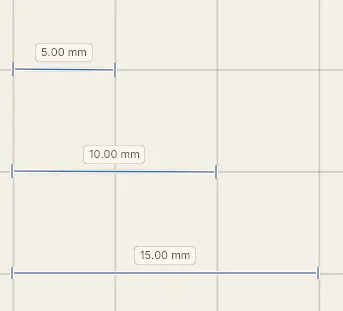 Three rulers laid down one after another, each labelled with its length in millimetres. Nothing here sews — Esc clears them, and switching tools wipes them anyway.
Reach for it to check the gap between two elements, the width of a motif, or how far a design sits from the hoop edge — the things the size readout can’t tell you.
Snapping
Section titled “Snapping”Snapping in Octostitch happens while you edit nodes, rather than as a grid-snap:
- Axis lock constrains a node drag to purely horizontal or vertical (Blender- style), so you can move a point straight across.
- Holding Ctrl snaps the movement to a 1 mm increment.
- Alignment guides appear through a connected neighbour when your drag lines up with it, helping you keep nodes level or plumb.
See Edit (node editing) for more.