
Saving & autosave
Save vs Save As
Section titled “Save vs Save As”Octostitch saves your editable design — objects, paths, stitch settings, colours,
references and hoop — in its own .ostch format. This is different from
exporting a machine file: keep the .ostch as your master copy
so you can re-edit later, and export PES/DST/etc. copies to sew.
| Action | Shortcut | What it does |
|---|---|---|
| Save | Ctrl + S |
Write back to the current .ostch file (prompts for a location the first time) |
| Save As | Ctrl + Shift + S |
Write to a new .ostch file |
Saving requires an active licence. If you start a new design, open another file, or quit with unsaved changes, Octostitch prompts you to Save, discard (Don’t save) or Cancel so you don’t lose work.
Autosave & crash recovery
Section titled “Autosave & crash recovery”Octostitch protects your work in the background:
- Every 30 seconds, if the design has changed, it writes a recovery copy to the app’s config folder (written atomically, so a crash mid-save can’t corrupt it).
- On the next launch after a crash or an unexpected quit, it offers to Restore the recovered work (naming the original file and how long ago it was autosaved) or Discard it.
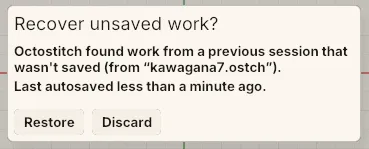 The recovery prompt names the file it found and when it was last autosaved, then offers Restore or Discard.
- After any clean Save or New, the recovery copy is cleared — so a normal session never leaves a file behind to nag you about.
The recovery files live alongside Octostitch’s other app data (on Windows, under
%APPDATA%\octostitch\recovery).