
Importing SVG
If your artwork is already vector — an SVG from a logo, an icon set, or a drawing app — you can import it directly instead of tracing a raster image. The vector paths come in cleanly, with no tracing step to introduce noise.
Importing an SVG
Section titled “Importing an SVG”Choose File → Import SVG… and pick your file. Octostitch shows a short Import SVG dialog with the file name and one option (below), then reads the SVG’s paths and brings them in as editable objects on Bézier paths — the same kind of path you’d draw with the Pen tool, so you can reshape them with the Edit tool afterwards.
Imported vector fills use non-zero winding so compound shapes with holes (counters, crossbars) resolve the way the artwork intends.
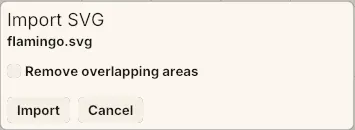 The whole dialog — the file you picked, the one option, and nothing else to decide.
Remove overlapping areas
Section titled “Remove overlapping areas”Vector artwork is usually drawn in stacked layers: a shape behind, another painted over the top of it. Printed, the top one simply hides what’s under it. Stitched, both sew in full — so the covered region gets a second layer of thread it doesn’t need, which stiffens the fabric, adds stitches and can push the top layer out of shape.
Tick Remove overlapping areas in the import dialog and Octostitch clips each filled shape by the shapes stacked above it, so every region is stitched once instead of once per layer.
Three things to know before you use it:
- Clipped shapes become polygons — their curves are flattened, so the paths are heavier to edit afterwards than the originals would have been.
- Shapes hidden completely by what’s above them are dropped.
- Outline styles (running, zigzag, satin) are left alone — only filled shapes are clipped.
 The same file, imported twice. On the right it comes in as drawn, every layer sewing in full; on the left, with Remove overlapping areas ticked, each region is left to one layer of thread. It’s worth comparing them in Preview before you commit — what changes is what actually sews.
Leave it off when you want the layers exactly as drawn, or when you plan to rework the overlaps by hand with the boolean operations.
The same option appears in the Convert Image dialog, because a traced image is stacked the same way.
After importing
Section titled “After importing”An SVG defines shapes, not stitches — so, as with any import, you still choose how each path is stitched:
- Assign stitch types — satin, fill, running.
- Add underlay where needed.
- Set thread colours and the colour sequence.
An SVG line drawing usually arrives as one object holding many separate strokes, which sews as a jump between every one of them. Give it running or bean with redwork routing and the whole drawing comes out as one continuous thread instead.