
Pen (Bézier paths)
The Pen tool (B) draws the Bézier paths that most objects are built on. To
start a new path, arm the Bézier create button in the toolbar, then click on the
canvas.
Placing anchors
Section titled “Placing anchors”- Click to drop a corner anchor and continue the path in straight segments.
- Click and drag to drop a smooth anchor and pull out control handles in one motion, curving the segment as you go.
Each click adds another anchor, building the path point by point.
What separates a click from a drag is a few pixels on screen, not a fixed distance in millimetres — so zooming in genuinely buys you finer control, rather than the deadzone growing with the zoom and swallowing the small adjustments you zoomed in to make. The same goes for dragging out a shape.
Control handles
Section titled “Control handles”The control handles that extend from an anchor shape the curve on either side of it. Longer handles make broader curves; the handle direction sets the tangent the curve follows through the anchor. You refine handles after the fact with the Edit tool.
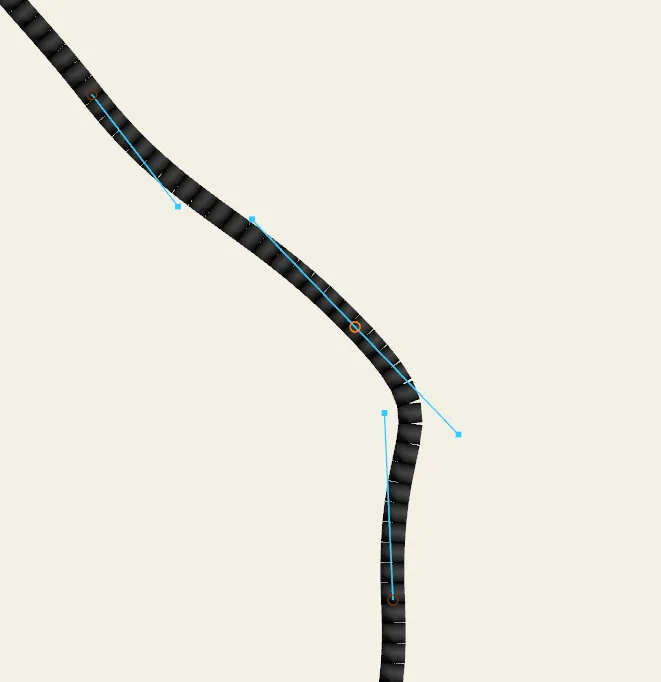 A Bézier path mid-draw, showing anchor points and their control handles.
Freehand drawing
Section titled “Freehand drawing”The Pen tool has a Freehand mode, on the small panel in the bottom-left of the canvas whenever the Pen is active. Tick it and a left-drag traces a line by hand instead of placing an anchor; let go and Octostitch fits Bézier curves to what you drew. The result is an ordinary path — the same anchors and handles a clicked path has — so you can reshape it afterwards with the Edit tool.
Corners survive: a hard turn in your stroke comes back as a corner node with two independent handles, rather than being rounded off.
Two sliders shape the fit:
- Smoothing (%) — how far the fitted curve may stray from the line you drew. More smoothing gives fewer, longer curves and fewer nodes; less follows your hand closely at the cost of a busier path.
- Deadzone (px) — how far the cursor must move before the next point is recorded. Raise it to shrug off a shaky hand.
Both are measured in screen pixels, so they behave the same however far you’re zoomed in, and both are remembered between sessions. Freehand mode itself isn’t — the Pen always starts in click-to-place mode.
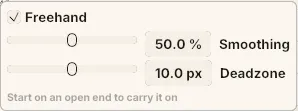 The Freehand panel, bottom-left of the canvas whenever the Pen is active. Both sliders read in screen pixels, and the line underneath is the reminder that a stroke begun on an open end carries that path on.
Freehand draws wherever a pen click would: into the armed Bézier create button, into the selected object, or onto an open end under the cursor to carry an existing path on. Right-click or Esc part-way through throws the stroke away.
Extending an existing path
Section titled “Extending an existing path”Select a Bézier object and switch to the Pen tool to continue drawing from the end of its path — each click adds another node onto the existing object rather than starting a new one. (Shapes and satin columns can’t be extended this way; the Pen tool only applies to Bézier objects.)